Skip to navigation

Lifecycle Management

A lifecycle rule is a recurring background job, attached to a bucket, that runs against the objects inside it. Use rules to automatically delete old data, clean up incomplete multipart uploads, or move objects to a lower-cost storage class. Rules are evaluated daily and applied automatically.

Before you begin

1

1. Open Lifecycle Policies

Open a bucket, click the Settings tab, then click the Lifecycle Policies tab.

2

2. Add a rule

Click + Add Rule. If no rules exist yet, click + Create Your First Rule.

IBEE Object Storage lifecycle policies
3

3. Configure the rule

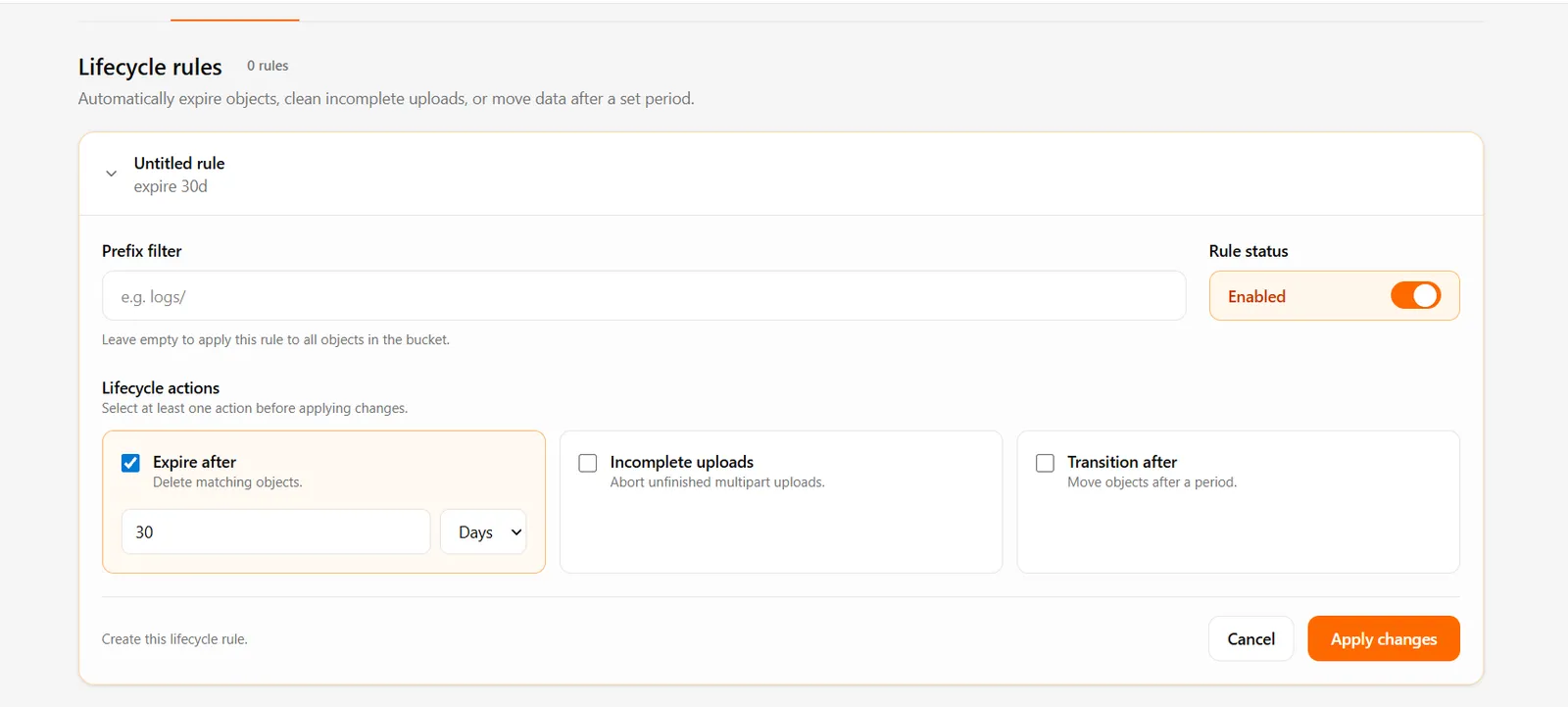
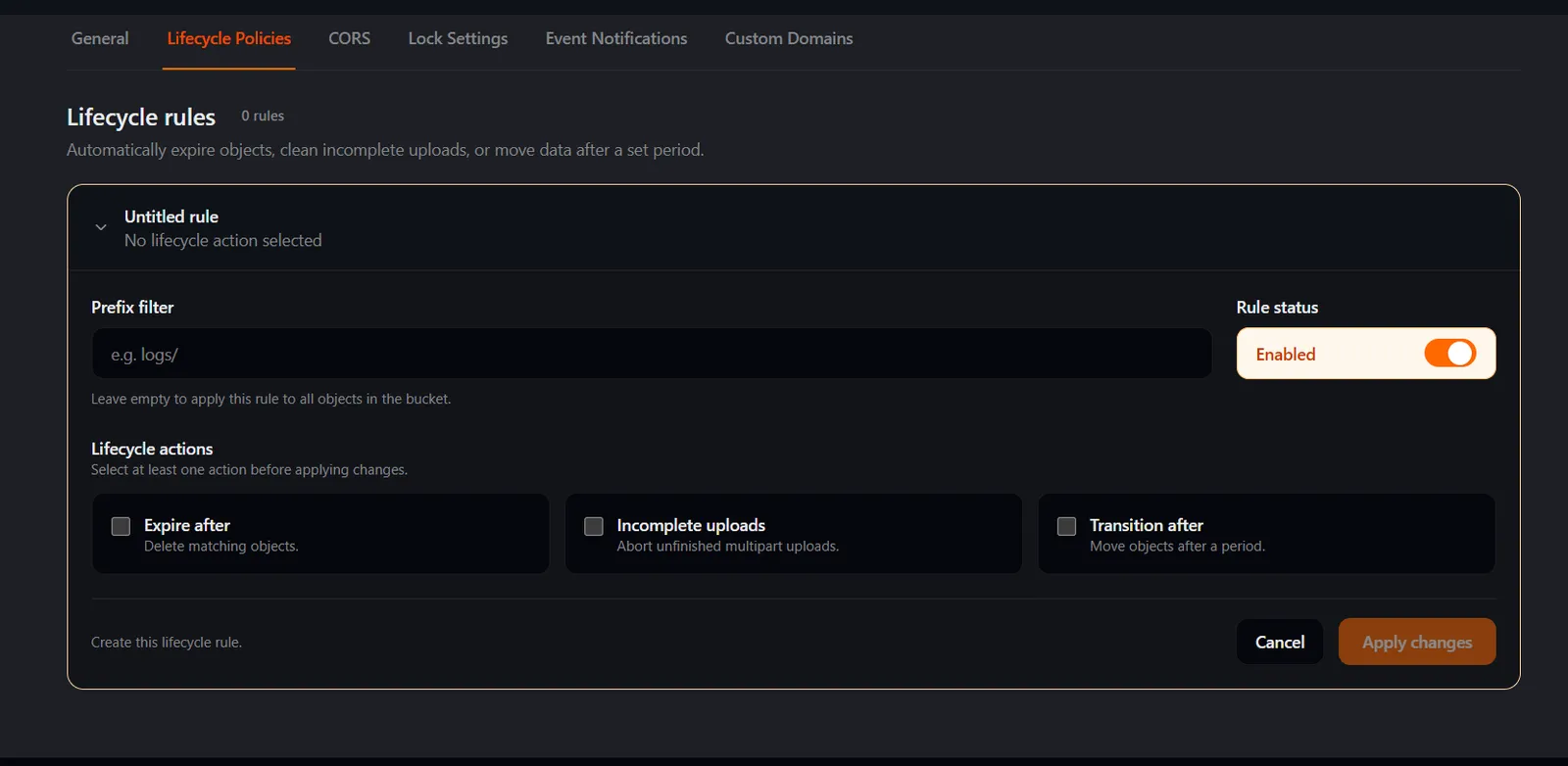
Fill in the Lifecycle rules panel — subtitle: “Automatically expire objects, clean incomplete uploads, or move data after a set period.”

FieldTypeDefaultDescription
Prefix filterText—Placeholder e.g. logs/. Leave empty to apply this rule to all objects in the bucket.
Rule statusToggleEnabledEnable or disable the rule. Disabled rules remain saved but are not executed.
Expire afterCheckbox + Days or Date30 daysDelete matching objects after a number of days, or on a specific date.
Incomplete uploadsCheckbox + days7 daysAbort unfinished multipart uploads after the specified number of days.
Transition afterCheckbox + Days or Date30 daysMove objects to a lower-cost storage class after a number of days, or on a specific date.

Under Lifecycle actions, the helper text reads “Select at least one action before applying changes.”

Click Apply changes.

At least one lifecycle action must be selected before you can apply changes.

How lifecycle rules work

  • Rules are evaluated daily and applied automatically.
  • Use a prefix to target specific folders (e.g. logs/ or temp/).
  • Disabled rules remain saved but are not executed.

Lifecycle actions

ActionDescriptionUnit
Expire afterDeletes matching objects after the specified period or on the specified dateDays or Date
Incomplete uploadsAborts unfinished multipart uploads after the specified periodDays
Transition afterMoves objects to a lower-cost storage class after the specified period or on the specified dateDays or Date

Troubleshooting

Apply changes is disabled At least one lifecycle action (Expire after, Incomplete uploads, or Transition after) must be checked before applying changes.

Rule is not executing Check that the Rule status toggle is set to Enabled. Disabled rules are saved but not executed.

Rule applying to all objects unexpectedly If the Prefix filter field is empty, the rule applies to all objects in the bucket. Add a prefix to restrict scope.